Claude Code or Codex
Install the chosen CLI and log in to it first. Select it in AI settings. Writing Workbench uses that existing login; no API key is needed or stored by the app.
 Writing
The field guide
You don’t need the whole story figured out. Start small, then give it room to grow.
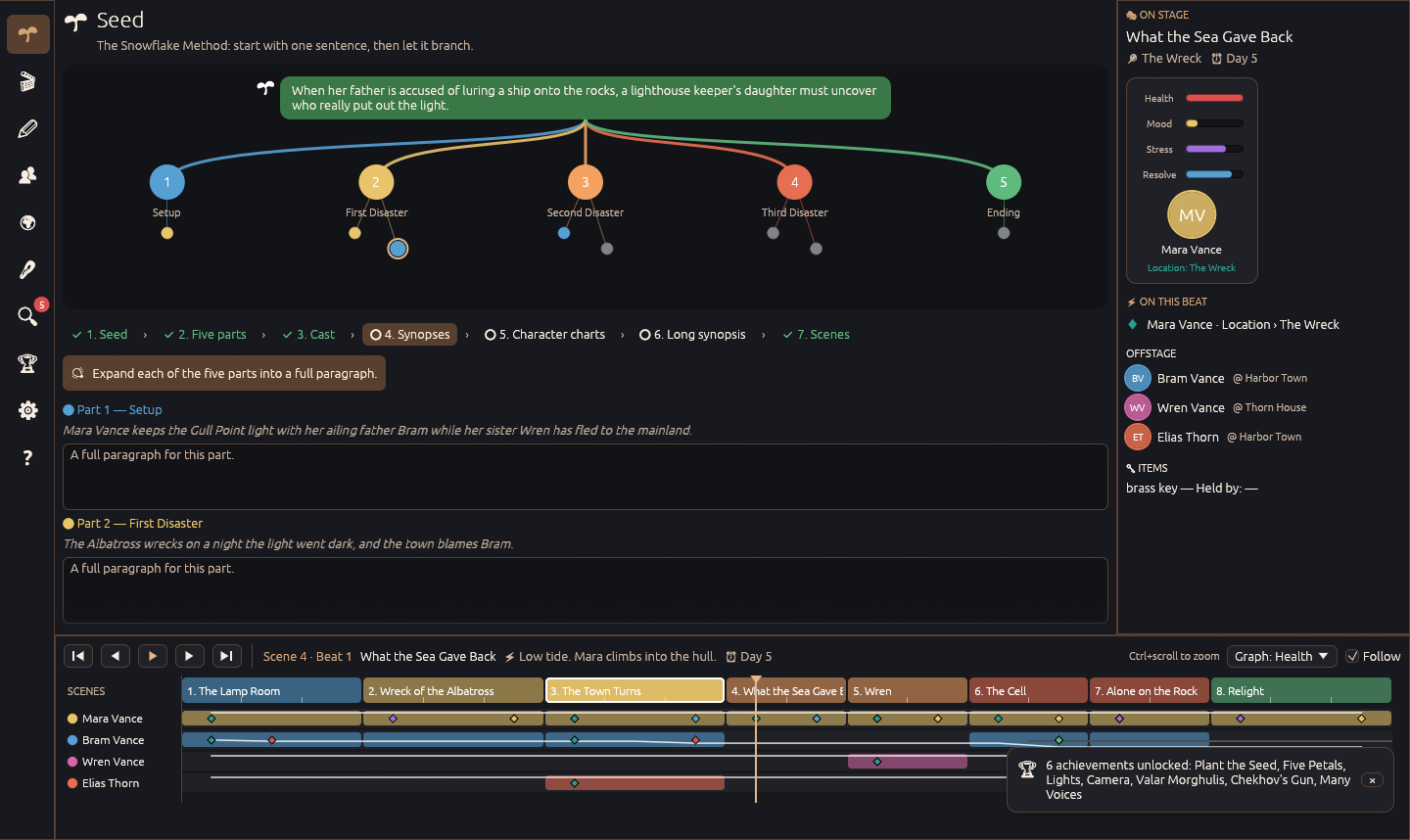
Use File → Save as… to choose where your story lives. Stories are plain JSON .storystate files. Autosave keeps work on disk; Ctrl+S saves immediately.
Each save keeps a rotating backup in a .storystate-backups folder beside the story. Set how many backups to retain in Settings → Appearance. The top bar shows whether your latest changes are saved.
Use File → Open or Ctrl+O to reopen a story. You can copy and back up your files yourself; no account or cloud service is required.
File → Import manuscript accepts Markdown, plain text and Fountain. It splits the manuscript into scenes at headings, scene breaks or screenplay scene headings. Script imports create characters and locations automatically.
Export from File → Export or Settings → Project. The outline includes your seed, parts, scenes and beats without the prose. The HTML manuscript opens in a browser or word processor.
Open Settings → AI, choose a provider, fill in the requested fields and press Test connection. The rest of the app works without AI.
Install the chosen CLI and log in to it first. Select it in AI settings. Writing Workbench uses that existing login; no API key is needed or stored by the app.
Run your local model service, then select the matching provider and configure its endpoint and model in AI settings. Keep the local service running while you use it. Local models can work fully offline.
Select the provider and enter your own API key and model. Keys are stored in the OS credential store. Your chosen provider handles requests when you invoke AI.
Choose the OpenAI-compatible option and supply the endpoint, model and credentials it requires.
Turn off Send full scene text to send summaries and beats without your prose. Review each proposal before accepting it. Ctrl+Z can undo an accepted change.
If the connection test fails, check that the CLI is installed and logged in, the API key is correct, or your local model service is running.
Press F1 for help about the current page. The built-in manual is searchable, includes a self-checking quick start, and links feature mentions directly to the corresponding tools.
Timeline shortcuts apply when you are not typing in a text box. Inside a text box, undo and redo apply to text first.
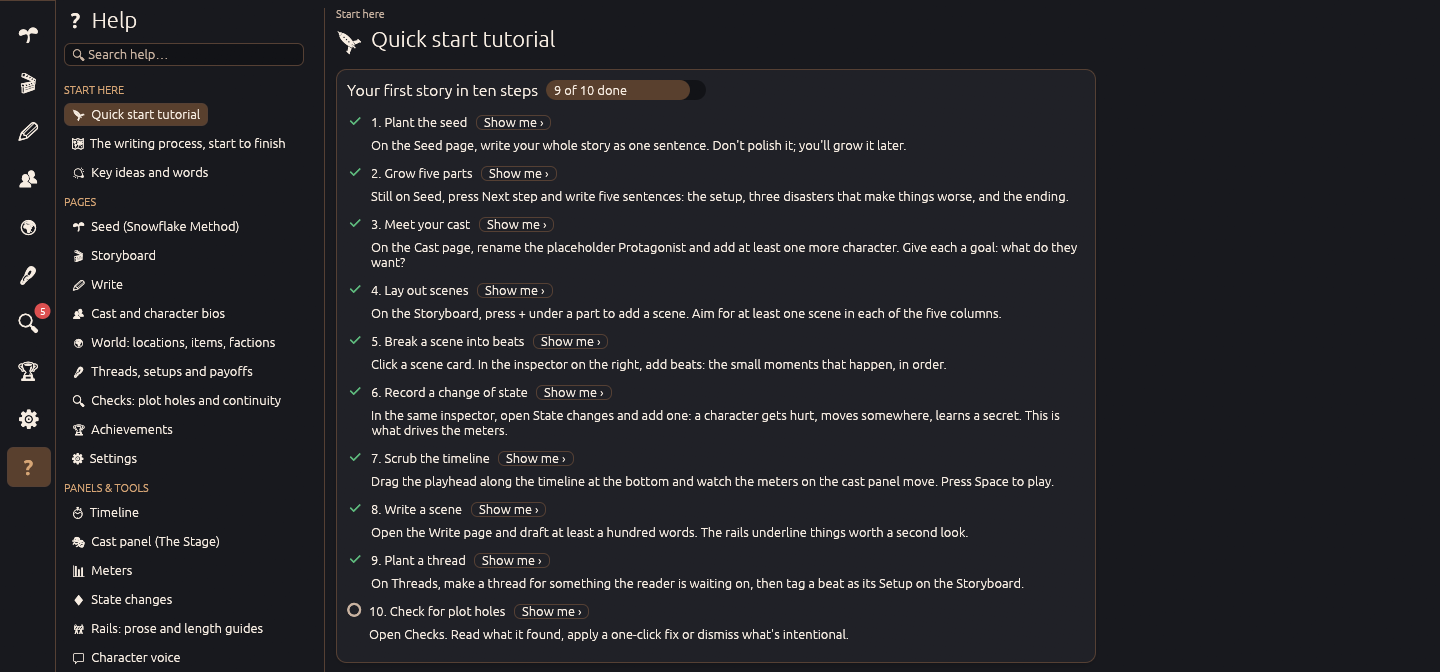
Writing Workbench is a native desktop app for Windows and Linux, including Steam Deck. It is designed around a mouse and keyboard; a keyboard is useful for sustained writing on Deck. Text entry uses the system keyboard.
Steam Deck compatibility certification has not been announced. The app works offline, and the Steam build continues working when Steam is not running. Writing achievements are kept locally and sync to Steam on Steam builds.